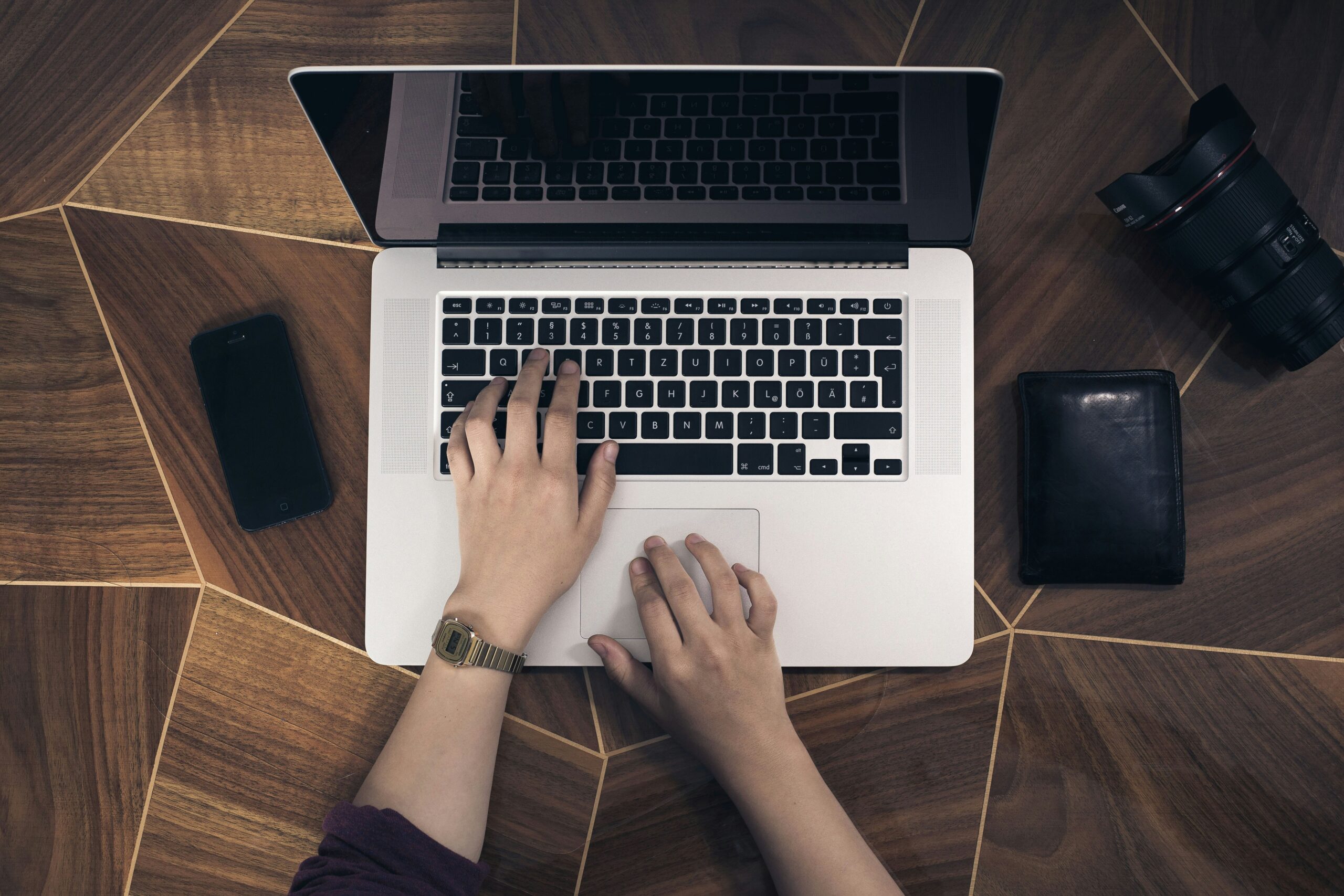
Guide to Buying a Computer
Choosing between a laptop, desktop, tablet or phone, what to look for, and what to do with your old one
CHOOSING THE RIGHT DEVICE
Before comparing models and prices, it’s worth deciding what kind of device would suit you best. If your needs are mainly email, browsing, video calls, photos and online banking, the simplest option may well be the best one. Tablets and phones are covered in more detail below.
LAPTOP
A laptop
Benefits: It can be used in any room or taken away with you, and has everything built into one unit.
Drawbacks: The screen and keyboard are smaller than a desktop’s, although a larger screen can be connected, and the battery wears with age.
TOWER
A traditional desktop (tower)
Benefits: A separate computer, screen, keyboard and mouse make it comfortable for long periods, and each part can be repaired, upgraded or replaced on its own.
Drawbacks: It takes up the most room, has the most cables, and stays in one place.
ALL-IN- ONE
An all-in-one desktop
Benefits: The computer is built into the back of the screen, giving a large display with far fewer cables and a much tidier desk.
Drawbacks: It’s harder to repair or upgrade, and if one part fails, you lose the use of the whole unit.
TABLET
A tablet, such as an iPad
Benefits: The simplest to use, with a touch screen, few settings to go wrong and automatic updates. A keyboard can be added.
Drawbacks: It’s less suited to long documents, organising files or traditional computer programs.
IS A TABLET RIGHT FOR YOU?
For many people, a tablet is the simplest option of all. It switches on instantly, updates itself automatically and has far fewer settings to go wrong, while doing everything most people need: email, browsing, video calls with family, photos, online banking and shopping, and catching up on television.
iPads are particularly well supported, typically receiving updates for six to eight years, and work seamlessly alongside an iPhone. Android tablets, such as Samsung’s Galaxy Tab range, are a good alternative if you have an Android phone, as long as you choose a model that’s promised several years of updates. We’d avoid Amazon Fire tablets as a main device, as they lack Google’s Play Store and many familiar apps.
ADDING A KEYBOARD
If you’d rather type on proper keys, a keyboard can be added to almost any tablet. A keyboard case doubles as a cover and stand, turning the tablet into something very like a small laptop. Apple’s own keyboards are expensive, but well-regarded alternatives from Logitech and others cost far less.
WHAT ABOUT YOUR PHONE?
A modern smartphone can do most of what a computer does, and for many people it already handles email, banking, photos and messages. Its main drawback is the size of the screen, which can make reading and typing a strain. Making the text bigger helps a lot:
- On an iPhone, open Settings, then Display & Brightness, then Text Size.
- On an Android phone, open Settings and search for Font size.
If the screen still feels too small, a tablet is the natural next step, as it works in much the same way but with a far larger display.
OUR VIEW
If you mainly use email, the web, video calls and photos, and value simplicity, a tablet is often the best choice, and a keyboard can be added if you wish. If you write documents, manage files or rely on particular programs, choose a laptop or desktop.
CHOOSING A LAPTOP OR DESKTOP
WINDOWS, MAC OR CHROMEBOOK?
- Windows is the most familiar choice for most people, with the widest selection of models and prices, and it works with almost any printer or program.
- Mac computers are simple, reliable and supported for around eight years, and work particularly well alongside an iPhone or iPad. They cost more, although the MacBook Neo, launched in 2026, is Apple’s most affordable laptop yet.
- Chromebooks are simple, inexpensive and secure, with up to ten years of updates from when the model was launched. They work best online, however, and can’t run Windows or Mac programs.
WHAT TO LOOK FOR IN A WINDOWS COMPUTER
| Look for | Avoid | |
|---|---|---|
| Processor | Intel Core 5 or Core i5 (10th generation or newer), or AMD Ryzen 5 (3000 series or newer) | Intel Celeron, Pentium, Atom or N-series, or anything older |
| Memory (RAM) | 16GB if you can, and 8GB at the very least | Anything under 8GB |
| Storage | 512GB SSD, or 256GB at the very least | eMMC storage |
| Screen | Full HD (1920 x 1080); 15 inches or larger is easier to read | Lower resolutions, such as 1366 x 768 |
- There’s no need to pay extra for an ‘AI PC’ or ‘Copilot+ PC’. Microsoft’s Copilot assistant also works on ordinary computers.
- Prices have risen during 2026 because of a worldwide shortage of computer memory, so a well-equipped computer may cost more than you expect.
- These are general guidelines. For a recommendation tailored to how you use your computer and your budget, just get in touch.
BUYING WISELY
- Extended warranties are rarely good value, as the Consumer Rights Act already gives you some protection. A faulty product can be returned for a refund within 30 days, and after that you may still be entitled to a repair or replacement if it develops a fault that it reasonably shouldn’t have.
- Antivirus software isn’t needed, as Windows has Microsoft Defender built in. Our Guide to Antivirus explains more.
- Microsoft 365, which includes Word, Excel and Outlook, is only worth paying for if you need those programs.
BUYING REFURBISHED
Refurbished computers and tablets can be good value. Buy from a reputable seller, such as Apple’s Certified Refurbished store, and look for at least a year’s warranty.
Some older Windows computers are sold with Windows 11 installed using a workaround, and may stop receiving security updates, so check the processor before you buy:
- On an Intel Core i5, the number after the dash should begin with a 1, such as i5-1135G7.
- On an AMD Ryzen 5, it should begin with 3 or higher, such as Ryzen 5 5500U.
NOT SURE?
If you’re unsure whether a computer is suitable, we can look over the details for you before you buy.
YOUR OLD COMPUTER
Before parting with an old computer, tablet or phone, make sure that everything you want to keep has been copied across and that your personal information has been removed.
- Copy your files, photos and passwords to the new device. Our Guide to Backing Up explains how to keep them safe.
- Sign out of your accounts. On Apple devices, signing out of your Apple Account also switches off Find My; on Android devices, remove your Google account.
- Reset the device to erase your information. On a Windows computer, use Reset this PC, choose Remove everything and switch on the option to clean the data.
- Recycle it responsibly. Shops must take back your old device free of charge when you buy a replacement, and your council’s recycling centre will also accept it.
WE CAN HELP
We can advise on what to buy, set up your new device and move your files across. We can also make sure your old one is safely wiped.
TAKE A COPY
You’re welcome to download this guide as a PDF to print or share with family and friends.
Or enter your name and email address below, and we’ll email you a link to this guide straight away.